Spreadsheet software refers to software that can organize and calculate data in a table. Spreadsheets have numerous real-life uses, such as accounting (calculating the finances and allocation of money spent for a company), creating lists, and putting data in a table and a chart that is easy to analyze. There are many different functions that can be used in spreadsheet software. During class, we created an online spreadsheet through Zoho so we could try out different spreadsheet functions together. The functions are talked about more in depth below.
RANDBETWEEN
This function returns a random whole number within the range given by the user (including the top and bottom number.) To use this function, you type in the cell =randbetween(bottom;top). “Bottom” refers to the number that is the minimum number within the range, while “top” refers to the number that is the maximum number within the range. Everytime you make a change, the function comes up with a new random number. This function does have some uses. For example, it can be used as a simulation for probability: if you set the bottom and top number as 1 and 2 respectively, you can simulate the probability of tossing a coin (with one digit representing heads or tails).
SUM
This function adds the values of the cells collected. It looks like =SUM(number1;number2…number n). The greatest value that n can be is 50. SUM is very helpful: for example, it can easily calculate the total amount of money you spent in a time period.
AVERAGE
Average finds the average value of the cells selected (only including numbers, no text). It is typed in the same way as SUM but “sum” is replaced with “average”.
Obviously, this function is very handy. One use of it that is particularly relevant to students is that it can find the average of your grades.
In Picture 3, the formula of “Avg (formula) is =AVERAGE(B2:B9).
MAX&MIN
MAX finds the largest value within an array of selected values, while MIN finds the smallest. MAX and MIN are both typed in the same way as “sum”, except “sum” is respectively replaced with “max” and “min”. Once again, at most 30 values can be selected at a time. Continuing with the example of being a student, MAX and MIN can be used to find the greatest and worst performer, or your best and your worst subject (in terms of grades).
In Picture 3, the formula of MAX is =MAX(B2:B9), while the formula of MIN is =MIN(B2:B9).
ROUND,ROUNDUP, & ROUNDDOWN
These three functions round numbers. The formulas are written as =ROUND/ROUNDUP/ROUNDDOWN(number;places). (ROUND will round the value to the nearest places; if the nearest pladce is unspecified, then it is rounded to the nearest integer. On the other hand, ROUNDUP rounds the value to the nearest number up to a certain precision, while ROUNDDOWN rounds the value to the nearest number down to a certain precision (once again, if the precision is unspecified, then the place is assumed to be the integer place). Rounding is useful for when you only need a value to be of a specific precision. Roundup and rounddown can be used for when you can’t use decimals of something (ie., you can have 3 or 4 apples, but not 3.6 apples per person), and you either only have so many apples to distribute and therefore must have 3 apples per person, or you can buy more apples and make it 4 apples per person.
In Picture 3, the formula of ROUND is =ROUND(A2), ROUNDUP is =ROUNDUP(A2), and ROUNDDOWN is =ROUNDDOWN(A2).
ABS
This function calculates the absolute value of a number. Its formula is ABS(number). This function is handy for calculating vector quantities, which are all greater than zero.
In Picture 3, the formula of ABS is =ABS(A3-A4).
COUNT, COUNTBLANK, COUNTA & COUNTIF
These functions can count the number of cells that fit a certain condition within the selected number of cells. COUNT counts the number of values within a selected range, excluding text entries. COUNTBLANK counts the number of empty cells within a selected range, while COUNT IF counts the number of cells in a range that meet the conditions specified by the user. COUNT’s formula is =COUNT(value1;value2;……value30) (at most 30 values), while COUNTBLANK is =COUNTBLANK(range). COUNTIF is =COUNTIF(test_range;condition). Condition can be a number or a range such as <=2. These functions can be respectively used to count the number of grades you should have, the number of grades you are missing and the number of grades you have that are above a certain grade. COUNTA is =counta(value1;value2;…value30) and counts the non-empty values in a list of cells. It can be useful for telling how many entries you do have within a certain range.
In the 3rd picture, the formula of COUNT is =COUNT(B2:B10), the formula of COUNTBLANK (the D10 cell) is =COUNTBLANK(B2:B10), the formula of COUNTA is =COUNTA(B2:B10), and the formula of COUNTIF is =COUNTIF(B2:B10).
RANK
This function ranks a certain number within a specified number list. Its formula is =rank(number;numberlist;order). If order is zero or omitted, the numbers are ranked with the highest being first. If order is nonzero, the numbers are ranked with lowest being first. Rank is helpful to tell how big a number is compared to other values within a certain list.
The formula of RANK in picture 3 is =RANK(A5;A5:A7).
CONCATENATE
CONCATENATE is a very special function. Its formula is =CONCATENATE(text1;text2;text3…text30). What concatenate does is combine values from several different cells (that can be on different sheets) all into one cell. Concatenate can be used in a group project to combine work written on separate sheets by all people.
During class, we used concatenate to create a story together. The class was divided into groups, and each group was responsible for coming up with a story about a certain layer of the a computer system. Our group was responsible for data. Then, all of the seperate stories from the different groups were combined into one big story with CONCATENATE. It was very interesting because different parts of the story were written independently.
A part of the concatenate formula and the story we created are in picture 4.
IF&IFERROR
The if function returns a certain number depending on the condition given. Its formula is =IF(test;value1;value2). “test” is a value or expression that is used to evaluate which number to use. This function can be used to quickly determine if a certain value fits an expression or not.
Iferror returns one of two values, depending on the first value entered. Its formula is IFERROR=(value;value_if_error). Value is checked to see if the value has an error. The value remains “value” if there is no error, otherwise the “value_if_error” value will be shown.
In the picture, the formula of IF is =IF(K1>3;1;2) and the formula of IFERROR is =IFERROR(K1<0). IFERROR is the false cell.
AND,OR&NOT
The AND function will return TRUE if all the values entered are true. Otherwise, FALSE will be displayed. Its function is =AND(argument1;argument2;…argument30). Any value that is a non-zero number or is text is considered TRUE. This function is very useful for when you have to make sure that all values are real before you can proceed.
The OR function returns FALSE only if none of the values entered are true. Its function is the same as AND except it only returns FALSE if all of its values are false. This function can be used when you only need one of the values to fulfill a condition to move forward.
The formula of AND is =AND(Q14>Q15;Q16>Q15), OR is =OR(Q14>Q15;Q17=9), NOT is =NOT(Q14<Q15). OR is the one on top. Try to guess where the two other ones are.
NOT is a function that returns TRUE if the statement is false and vice-versa. Its function is =NOT(logical_value). For example, if =NOT(A1>3), and A1 is 2, then the argument is true. This function is used to quickly tell if something doesn’t fit a certain condition. NOT
LOOKUP
This function returns a value from a table that corresponds with a searched value from another table. Its formula is =LOOKUP(lookupvalue;searchtable;resulttable). Lookup value is a certain value that you search within the search table. Once the value is located in the search table, the computer finds the value with the same position within the result table. The corresponding value within the result table will be displayed in the cell that For example, if the number 7 is searched and found 3 cells from the top, then the value 3 cells from the top within the result table (maybe “Biology”) will be displayed within the cell that the LOOKUP function was originally entered. LOOKUP is obviously incredibly useful for looking up values and there corresponding values (ie., 97 and 7) and creating a list of said values.
LOOKUP’s function is at the top of the photo.
With all that said…
This was one of the most important classes that we ever had. Spreadsheet is an extremely versatile function that is used for industries such as finance, accounting, computer science, etc. I gained a lot by learning how to enter basic yet critical functions with spreadsheet software.
This week, we talked about an essential part of computers: software.
Hierarchy of Software
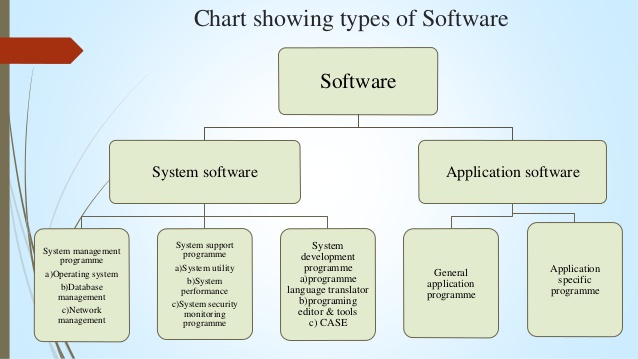
Software is mainly divided into two main types: system software and application software (further details about these two types of software will be discussed below). There are four main kinds of system software (library is not mentioned in picture): operating systems, library programs, utility programs and programming language translators. Application software is divided into three main kinds of software (third type is not mentioned in picture): general-purpose application software, special-purpose application software and bespoke application software.
System Software
System software is software designed to function as a platform for running other types of software. It is an essential kind of software. As stated above: there are four main types of system software: operating systems, library programs, utility programs and programming language translators.
Operating systems provide a platform for your computer as a whole. Without operating systems, you can’t do operate any other software on your computer. Common examples of operating systems include Windows, Mac OS and Linux.
Example of Windows OS
Library programs are a collection of resources that can be used to create other software. Examples of resources that libraries may include are prewritten code and configuration data. Libraries are extremely useful and essential for creating new software. Games often use libraries for character templates and game design in order to speed up the process of game development.
Utility software is software designed to support computer infrastructure. This concept may sound a little fuzzy, but it’s basically software that helps maintain the performance of other software. Examples include antivirus software and screensavers.
examples of different antivirus software
Programming language translators as their name implies, translate code into different programming languages. There are three main types of translators: assemblers, compilers and interpreters. Assemblers are special. They translate low-level assembly code into language that the computer can understand and perform. Compilers and interpreters are both used for the same reason, but they achieve their goals in different ways.
Video
To understand the difference between compilers and interpreters, we watched an in-class video. The video used animations and the analogy of being stranded on an alien planet to describe the difference. In the video, you are trying to get help from an alien mechanic to fix your car, and you need a translator. Interpreters translate code one by one, and after translating the code, they immediately pass the info on, allowing the computer to act instantly. While it can be a bit slow because the computer has to wait between different commands, it also allows for you to correct mistakes in the code on the fly. Compilers translate everything in one go, and then pass on all the translated language to the computer to perform. Although the computer has to wait at first, it will operate extremely quickly once it receives the code. However, if there are mistakes, then the computer will perform the mistakes in the code. If you pass on incorrect instructions to the mechanic, your car might explode.
Application Software
Application software is software that is used in the form of programs and applications on the computer.
The three main types of application software are all very important to the computer infrastructure that we have today.
General-purpose application software is simply software that can be used for a wide multitude of functions. Examples include word processors (such as Microsoft Word) and spreadsheets (such as Microsoft Excel).
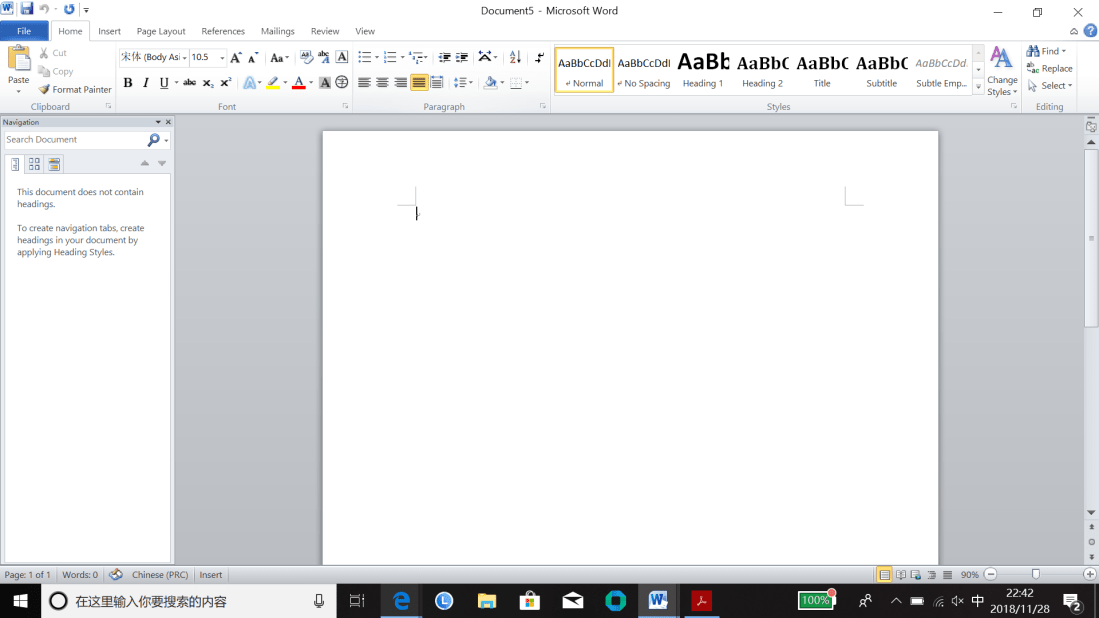
Microsoft Word, a word processor
Special-purpose application software is software that has a very specific use and function. Although their use is specific, special-purpose application software is still widely used in our everyday lives. For example, web browsers and calculators are both special-purpose application software.
Edge, a type of web browser
The final type, bespoke application software, is basically custom software. You lay out how you want the software to work and what its uses are, and then a software company will create the software for you according to your requirements. Due to this, the use of bespoke software varies widely depending on the request of the client, ranging from air traffic control software, BBC TV licensing service to software solving London congestion and creating charging schemes for certain services.
Presentation
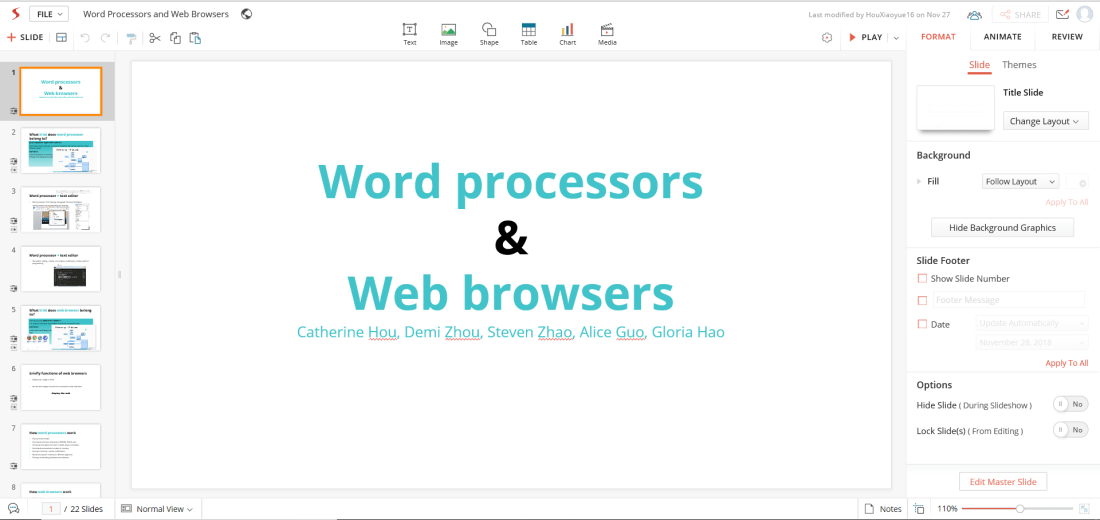
There is a lot to learn about software. Mr. Pete decided to let use delve deeper into application software by dividing us into groups and then having us research different topics and do a presentation on them. We were assigned web browsers and word processors. Overall, we did pretty well on our presentation. Every person did their part and we learned a lot about web browsers and word processors and how they work. Interestingly enough, although web browsers these days can accomplish a lot of things such as playing videos and games, they are only able to accomplish this with the aid of plug-ins. The web browser itself is incapable of anything else other than going on websites. This is why the web browser is classified as a specific application software.
Conclusion
We really did learn quite a lot about software this week. We learned about how it is sorted into different kinds and what those different kinds of software are. Also, we viewed a great video in class that provided an in-depth yet simple explanation on the difference between interpreters and compilers. Finally, we created a presentation with our groups, promoting cooperation, presentation skills and of course, our knowledge of software (in our case, web browsers and word processors). Learning about software was extremely helpful because we use software to do all sorts of things these days, and over time, people will only develop more and better software, so it’s good for us to understand something so invaluable to modern society.
In Computer Science class this week, we learned about flowcharts.
What is a Flowchart?
A flowchart is simply a more visual way of representing an algorithm. The flowchart is a diagram that illustrates the steps required to solve a problem.
Drawing Flowcharts
Drawing and understanding a flowchart requires some prior knowledge, but it’s very simple to learn. First off, the direction of a flowchart goes from left to right and top to bottom. The lines of the flow must also have arrows denoting their direction. Start and end use elliptical shapes, input/output shapes use parallelograms (that are not rectangles or rhombuses), calculations use rectangles, and the symbol used for decisions is a rhombus.
Flowchart Techniques
Techinique might be a misleading word; these are some commands that are a bit more complex to use when writing an algorithm/flowchart, but they’re not that hard to learn and give you the potential to write so many more different algorithms.
The most basic one is IF. In the picture below, true means that the if statement is fulfilled, while false means that it wasn’t. If false, then the statement directly ends. By using if, you can give different steps for different circumstances, which is obviously extremely handy.
IF statement
Next is IF ELSE. IF ELSE is similar to IF, but now, if the validity of the statement is false (body of else), then the program will output another statement instead of directly ending.
IF ELSE statement
IF ELSE IF statements build on upon IF ELSE statements (as the name implies). However, when the condition is false (“else”) now, the “false” flow leads to another IF statement. Once again, this increases the possible things you can do with algorithms, as you can now take a holistic approach and divide circumstances even more efficiently than before.
IF ELSE IF statement
Nested IF statements are practically the same thing as IF ELSE IF statements, but reversed: now, the statement leads to another IF statement if is true, not if its false. In some cases, this is a bit more conventional and easier to understand than IF ELSE IF statements.
NESTED IF statement
Another neat command that can be used is the LOOP statement. As the name implies, a loop statement can let you do a step or multiple steps repeatedly until a certain condition is required. There are two main types of loop statements: WHILE-loops and DO-WHILE-loops. In WHILE-loops, the “true” arrow is vertically straight, and the body needing looping is carried out while looping back to the test expression. In DO-WHILE-loops, the “true” arrow loops back to the test expression, and the body needing looping is carried out once done looping back. The difference is pretty difficult to explain with words, so I provided the two pictures below to show the difference between the two types of loop statements.
Activities
Of course, the best way to learn something is by actually doing it. So, we did some flowchart activities during class. We started with the activity on the left. Mr. Pete gave us two tasks. The first one was to create a flowchart for the product of two numbers. This one overall was pretty straightforward. The second one was to create a flowchart for recognizing if a number is even or odd. These weren’t very difficult tasks, but they were very useful in me solidifying my understanding of flowcharts.
Left algorithm is the first one, right algorithm is the second one.
Typing Test
We also had a typing test this week. Mr. Pete really upped the ante by raising the WPM requirement from 20 WPM to 25 WPM. Obviously, typing is an essential skill if you want to work with computers because practically all computer science-related things require typing. If you type fast, your work efficiency is much higher.
Basically…
We learned a lot about flowcharts this week, which was really helpful. Although a bit of a hassle to draw, flowcharts are great because they are intuitive and easy to understand. By designing a flowchart, I strengthened my understanding of programming and algorithms. Obviously, this is very important because of how omniscient and essential programming is in today’s society. I also improved my overall logical thinking, which is helpful for basically everything.
This week, we learned a lot of content. We learned how algorithms are very important, and since they are so important, we also learned how to design algorithms using different expressions and use them to solve problems.
Algorithms all around us
Initially, algorithms may seem like a very faraway and foreign concept to us, reserved only for mathematical geniuses and IT technicians. However, they actually permeate our every day life and the modern world. During class, we watched a video called “The Secret Rules of Modern Living: Algorithms”. It is a documentary talking about and explaining different algorithms in our everyday lives. One algorithm is Google’s PageRank algorithm. Initially, most other search engines sorted search results by ranking websites by pure popularity and number of views. The founders of Google came up with a better algorithm that considered how many other websites referred to a certain website and the credibility and popularity of the other websites in order to rank websites. This new algorithm came up with much more relevant search results and led Google to the massive success that it has today. Another algorithm is the face-recognition algorithm that phone cameras use. The camera scans the pixels on your face, row-by-row, and then compares them to the pattern of a general face. If the pixels are in a similar pattern to that of a general face, then it will recognize your face as a face. One other neat algorithm is the match-making algorithm, which matches pairs after taking their preferences are taken into account. The pairs are separated based off of the computer finding the way to keep the most people satisfied.
A visual representation of the PageRank algorithm. The players are akin to websites. The more people pass to you, and the more popular the players that pass to you are, the higher your ranking is.
Algorithm-type thinking
We also watched a short clip on designing algorithms to solve problems. The author of the video devised multiple algorithms to count the number of people in a room. Initially, the algorithm used a loop where it would count people one by one. However, this was too slow, so he changed the algorithm to count people by pairs. Initially, I thought the algorithm wouldn’t work, because there might be cases where there are an odd number of people in the room. However, the author was one step ahead of me. To make the algorithm not buggy, he also added an “else if” condition where if there was no pairs left, the computer would still be able to count the left over person so the outputted result was the correct number of people in the room. Technically, you could make it so that the computer counted even more people at one time, but then you would have to add other conditions and make the algorithm more complicated to account for situations where there are left over people after counting or there are less people than the amount that the computer counts at one time. When designing algorithms, in addition to having definiteness, effectiveness, finiteness and having an input and an output, you have to strike a balance between the speed at which it can run and how complicated it is.
Expressing Algorithms
There are different ways to express algorithms. They are not just limited to computing language. Actually, humans have been using different forms of algorithms for a long time by now. Some different common ways of expressing algorithms are flowcharts, pseudocode, code and natural language. Flowcharts are pretty simple pictures where you go along a process and go through different stages. At every stage, you make a decision based on the command, and this will decide which way you go along the flowchart. Pseudocode uses individual English words such as “or”, “and”, “else if, etc. to express instructions. Code works the same as pseudocode, but is written in its own peculiar language that is understood by computers. And finally, natural language is using plain-spoken, normal English to give instructions for an algorithm.
In the video, the author used pseudocode so that normal people like us could understand. It was very helpful towards us understanding programming, because even though it’s not actual computing language, writing pseudocode uses the same logic and way of thinking when solving a problem as actual computer code.
A picture showing how to write pseudocode (and flowcharts!)
In the end…
We had very productive Computer Science classes this last week. We mainly learned about how algorithms are so widespread now, and how to understand them and design our own algorithms to solve problems.There is a good chance that I will need knowledge about algorithms for my career and life later on. By learning about algorithms, I feel that I have immensely improved my problem solving abilities. I’m really excited that I’ve learned the way of thinking for designing an algorithm, as it has provided the basis for me learning programming later on. This is both very important and helpful because as stated above, algorithms are so vital to our everyday lives in this age and will only grow more so. The future of algorithms is bright!
This week in Computer Science, we learned about something extremely useful and important: algorithms!
What is an Algorithm?
To start class, we first asked a very essential question: what is an algorithm? After some discussion, there was at least some consensus that algorithms are instructions that are often followed and carried out by computers. However, we were still pretty unclear as to what exactly is an algorithm and what properties it has, so Mr. Pete had us watch a short but comprehensive video clip called What is an Algorithm and take notes on it. After that, we were able to come to a clear conclusion as to what is an algorithm and its main properties. Algorithms are a set of specific, clear, step-by-step instructions on how to finish a task in a finite amount of time effectively. There are five main properties that all algorithms share: they have finiteness (must happen within a certain amount of time), definiteness (are unambiguous), have an input, have an output, and they must be effective (they can finish the task fairly well in an efficient manner).
Understanding the Algorithm
Now, understanding the definition and properties of the algorithm is great and all, and it’s very important to helping us understand and utilize algorithms, but it’s hard to really understand something without doing it. So, we did an activity about algorithms.
The first activity was pretty neat. The teacher chose two volunteers, Demi and Catherine. Demi was blindfolded and played the part of the “robot”, while Catherine played the role of the “instructor”. A water bottle was placed on a desk some distance away from Demi. Catherine’s job was to provide instructions to the temporarily blinded Demi on how to pick up the water bottle and give it to another nearby student. Basically, Catherine was a “computer programmer” who created an algorithm for Demi, the “computer” who only knows how to follow instructions, to follow. This activity vividly showed us how computers are completely dependent on the instructions an algorithm provides, and how algorithms need to be clear and step-by-step for a computer to properly use it and carry out the task at hand.
Then, we were given a sheet of paper. Mr. Pete gave us a set of instructions (the algorithm) for us (the computers) to follow. However, the instructions weren’t specific. They didn’t tell us if we had to use a straight edge to draw the lines required or which way the paper should be held (horizontal or vertical). From this activity, we realized that algorithms have to be specific.
My paper after instructions from teacher. Take note of how it is vertical and that I didn’t use a ruler to draw the lines: some others did it landscape and with a ruler
Finally, we were given a worksheet with different tourist locations. We had to devise a route along the paths shown on the paper that would ensure that for one, we visit each attraction only once, and for two, we would end up returning to the starting point (the hotel). After devising the route, we recorded the instructions for the route on a piece of paper. They were written in simple, specific step-by-step instructions, and were basically algorithms for humans. By learning to write our own “algorithms”, we were able to deepen our understanding of the properties of an algorithm even further.
Our route instructions.
Map used.
Magic…
We also did a presentation on “magic tricks” with the groups that we were split in to. Our group’s “magic trick” was that we had an “extremely intelligent” piece of paper that was invincible at tic-tac-toe. In actuality, we had written an algorithm on the piece of paper that mathematically ensured that we could never lose at tic-tac-toe. In the presentation, we performed our magic trick and explained how we had an algorithm that ensured the paper’s victory. I was tasked with helping to perform the magic trick: I read instructions off the paper and performed actions in accordance to what the algorithm said. Overall, our presentation was pretty comprehensive and entertaining. Once again, we strengthened our understanding of algorithms by writing one.
Lightbot!
Lightbot is a flash game that teaches people the logic behind writing algorithms. In Lightbot, you control a bot by writing instructions for it. The objective is to get the bot to light up all the lights on the stage. Instructions are written by choosing from an assortment of unique blocks that each have their own unique instructions (rotate right, jump, step forward, undergo algorithm P1, etc.). The number of blocks that can be used are limited. Overall, it was pretty fun, and also became challenging by the end, as we had to learn how to use loops (repeating instructions) within an algorithm. This game improved my computational thinking skill by helping me understand the complexity and process behind writing a good algorithm. After playing the game, I was able to write more efficient algorithms for more complex tasks.
Screenshot of LightBot Gameplay
Overall…
I really learned a lot about algorithms this week. I learned about what they are, what properties they have, and how write them. We also practiced writing different algorithms for different tasks. Plus, I improved my presentation skills through the “magic” presentation. I believe learning about algorithms will be very helpful for me in the future, as algorithms are being used more and more to finish tasks in our everyday lives. For example, Google is basically just algorithms. Also, algorithms are now being used to do other non-computer-related tasks, such as separating goods in a warehouse and distributing them. There is a high chance that in the future, regardless of what I choose as an occupation, I’ll have to know about algorithms. So, this week’s classes were really useful. We learned a lot of important information this week.
This week’s Computer Science class was both entertaining and informative.
CPU
We started off with a video called “Inside Your Computer”. It was a short, comprehensive clip about how a computer works, and in particular, how the CPU interacts with the other components of a computer.
The CPU (short for Central Processing Unit) is the figurative brain of the computer. The CPU is responsible for carrying out a series of stored instructions (called a program). The computer receives an input through an input device, such as a mouse, and the CPU will in turn carry out the corresponding program, process the input, and output the result(s) through an output device, such as the computer display.
Now, saying that the CPU will “carry out the program” and “process the input” somewhat oversimplifies this process, as there are several components that participate in it. The main components of the CPU are the CU (Control Unit), the ALU (Arithmetic Logic Unit), the Registers and the Bus.The CU makes decisions and sends commands to other parts of the CPU. The ALU carries out arithmetic (calculatation) and logic (decision) functions. The Registers provide temporary memory storage locations within the CPU. The “Bus”, as the name implies, transports information and commands from one part to another part within the CPU.
Once the CPU receives the input, the CU decides what to do with it. It’ll use the Bus to transfer commands to the ALU and send temporary data for the Registers to store. The ALU will follow the CU’s commands and calculate. Once done, the Bus will send the ALU’s calculations back to the CU, and the CU will once again make decisions on what to do with it. In the end, once the processing of the data is done, the CU will output the processed info via Bus to the output device.
A simple diagram of the CPU
To help us gain a better understanding of how the CPU and its components work together, we did role-playing of a CPU. The class was separated into different groups, and within a group, every single person had to act as a part of the CPU. Three people each represented the CU, the ALU, and the Bus, while there were two other people who represented the display and the CPU clock. The display is not part of the CPU, but is an output device that can show the processed data from the CPU. The CPU clock help keeps a record of total work times of all the other components. The clock helps us keep track of how much progress the CPU had made.
The role-playing activity was great because through interaction, we were able to dig deep and really understand how the CPU runs. We also realized that the CPU can only follow instructions. It cannot correct any mistakes unless told how to do so in the instructions. We also saw how the different parts of the CPU have to work together for it to run.
Binary Representation
The binary system is the language of the computer. It is represented using only zeroes and ones. Reading from right to left, if a digit is zero, it has a numerical (decimal) value of zero. If a digit is one, it has a numerical (decimal) value of 2^(n-1), with n representing which place the digit is in from right to left. For example, in 11111, going from right to left, the individual 1s respectively equal 1, 2, 4, 8, 16. The numerical value of a group of numbers is the sum of the value of each individual digit. For example, 11111=1+2+4+8+16=31. 101100=0+0+4+8+0+32=44. If every digit in a group of numbers is 1, then the decimal value of that entire group of numbers is 2^(n)-1, with n representing the total number of digits in that group of numbers. With the binary system, the computer can represent any whole non-negative decimal number. In computer science terminology, a bit is one digit in binary code. For example, a system with 5 zeros or ones (capable of having numbers such as 10010) is 5-bit.
Examples of how the binary system works.
Obviously, this concept is a little hard to explain with only words. So, Mr. Pete had us once again do interactive activities to understand a concept.
To start with, he had five volunteers go in front of the class and gave each person a card; each card had a decimal value within the range of 1-16 and was a power of 2 (1,2,4,8,16). The cards were given in order from greatest to smallest, with the greatest number (16) being on the left. Mr. Pete would give us a number, and we would try to represent only with the cards and the powers of 2. Cards that were flipped down equaled zero, while cards that were raised up had a decimal value equal to the decimal value on the card. In actuality, this activity was basically the same thing as the binary system, just with cards face up and down instead of ones and zeroes. This activity helped us understand how the binary system works and how to use the binary system to understand decimal values.
Then, we did another few activities. One was where people were divided into pairs and every pair was given 5 cards just like the cards that were given to the volunteers. We were tasked with representing every whole nues.mber from 1-31. Another activity we did was one where lights being on and off respectively were equivalent to ones and zeroes in the binary system, while different decimal values corresponded to different letters of the alphabet. Using this system, we created a message that said, “Help, I’m trapped.”
Finally, Mr. Pete gave us a homework sheet that had different decimal values on it. Our job was to use binary code to represent every single different decimal value listed.
ASCII & Unicode
ASCII, which stands for American Standard Code for Information Interchange, is the most common text file format for computers. In an ASCII file, each character is represented with a certain binary number in a 7-bit binary system, with their being a total 128 possible different characters.
How to write out the Latin alphabet with ASCII.
Unicode is an international computing standard for texts from different writing systems around the world. It has over 137,000 different characters. Unicode has different encoding formats, with UTF-8 being the most dominant one and accounting for 92.3% of all web pages.
Some examples of the many Unicode symbols.
ASCII and Unicode are very different from each other. ASCII is a subset of Unicode. ASCII is programmed to be used for the English language, while Unicode is international and meant to be used for not only texts from different languages around the world, but it can also be used for some special symbol sets and emojis. Obviously, Unicode has many more possible characters and bytes than ASCII.
In a Nutshell…
We learned about CPU, binary representation, ASCII and Unicode. One major way we learned was through interactive activities, which were fun, informative, and by allowing us to participate, were able to provide a deeper level of understanding for all the different concepts we learned.
This week, we had our first Computer Science class. We learned quite a bit.
To start with, we introduced ourselves, just like in all other classes. Then, Mr. Pete introduced the syllabus to us. The syllabus mainly consists of some basic but important computer skills. We ended class with some typing tests. Mr. Pete also gave us a little bit of homework to do. The homework includes signing up for numerous websites (zoho, icloud, etc.).
Overall, from my experience of our first class, I’m very excited about this semester’s Computer Science class for many different reasons. There are so many possibilities possible with computer technology, and the industry is not only developing extremely fast these days, but it is also boosting the development of other industries. For example, a lot of businesses sell products on their websites in order to boost their sales. Not to mention, I might choose to do IT in the future, so this class might be able to provide a good base for learning computer science later on. Also, regardless of what career I choose, it’s important to be computer literate anyways. Technology is so integrated in every aspect of our lives nowadays, if you don’t know the basics of computer science, you are at a severe disadvantage. To continue with the example of e-commerce, a lot of traditional brick-and mortar businesses (Toys R Us, Macy’s, etc.) are having a hard time selling goods and competing with e-commerce businesses. Basically, knowing computers is fun and important.
I’m also very excited about starting this new blog. I’ve never done a blog before. However, I’ve always enjoyed reading the blogs of some other people, and I’ve always wanted to start one. I think it’s great I have the opportunity to start a proper blog and be able to regularly to post my writings online for other people to see. It’s a great way for people to present their ideas and communicate.
In a nutshell, I’m really excited about Computer Science and starting a new blog. The reason why is because I think it’ll be very interesting and beneficial for me in the future.
(Starting from top left, going clockwise) Pic 1: First typing test Pic 2: Second typing test (w/ person blocking keyboard with a piece of paper) Pic 3: Zoho account
We had another few great, productive Computer Science classes.
Blog
To start with, Mr. Pete taught us how to set up a blog with WordPress. It was quite challenging at first, but after becoming more familiar with the system and the layout of the website, I found that WordPress is fairly intuitive. We learned up how to set up our own blog website with a proper home page and different reflections under a “Pre-IB Computer Science” category.
Home page of my blog.
PeteICT
Also, Mr. Pete has his own website “peteict.com”. We registered on it and entered our own personal student information. By registering our student information, we made it a lot more convenient for Mr. Pete to give and receive assignments from students and grade them.
My profile page on peteict.
What is a computer?
Next, we watched video clips on “What is a computer” and “Who invented the computer”. After watching the video, we discussed what we learned, which was mainly some tidbits about the history of the computer. By doing this, we were able to strengthen our basic understanding of the computer and how it came to be.
Computing System
A computer includes a computing system, which is composed of hardware, software and data. These three things work together within a computing system to solve problems. Hardware is the actual physical parts that the computer is composed of. So, the display, the keyboard, the mouse,etc. Software is the virtual parts and platforms the computer actually runs on, it is the programs that provide the instructions for the computer to execute. Examples would be the operating system and applications. Data are the raw statistics that the computer processes.
The Layers of the Computing System
Mr. Pete also taught us about the many layers of the computer system. Information is the innermost layer of computing. It shows how information is displayed on a computer. Information is managed by the binary code. Then there is the hardware layer (pretty self-explanatory), the programming layer, which deals with software, the operating system, which helps organize hardware and software, the application layer, which focuses on applying the computer for actual specific use, and the communication layer, which helps the computer to communicate with other computers.
Pretty self-explanatory. Information is the innermost and first layer.
Input, Process & Output
Input is to provide or give something to the computer. There are many different ways to achieve this: mouse, keyboard, touchscreen, etc. Process is (as the name implies) how the computer processes whatever input was given. For example, the computer must process the action of clicking somewhere with your mouse and locate where it is and the command it must carry out. Output is the result and the computer displaying the result to the user, usually through the display.
Afterwards, we did a group activity where we tried to come up with real life examples of input, process, and output (other than computers, obviously). For our group, we thought of an electronic fan. The input is setting it to certain wind speed (fast, slow, medium etc.), the process would be the fan changing its settings accordingly, and the output would be the fan blowing wind at the requested speed. This great activity allowed us to gain a greater understanding of the definition of input, process, and output and how it works for computers.
Computing Devices
Mr. Pete had us do a presentation to introduce a certain part of a modern computer. A computing system is mainly composed of five types of devices: input devices, processing devices, output devices, communication devices, and storage devices. Examples of communication devices are modern Wifi cards, network cards and Bluetooth. For our group, we had to introduce the different accessories of the storage group. This includes a wide variety of different devices: CD drives, DVD drives, USBs, hard drives, etc. i introduced the DVD drive.
We used Zoho to create a presentation together. Zoho is a website that allows multiple people to work on the same project simultaneously and help correct each other, so it is incredibly efficient for group projects where we have to create a single, comprehensive document together.
Then, everyone brought their group presentations to class. We did peer assessment, which is where students review the projects of other students. It’s a great way to make sure that students are not only paying attention to other people’s projects, but it also allows us to evaluate what makes a presentation great and learn from it and incorporate it into our future presentations later on. I think our group did fairly well. We were pretty comprehensive in terms of information and I felt that we communicated the ideas from the presentation pretty well.
my main slide (you can click on either of these two screenshots of our powerpoint to open up our presentation in zoho)
main title slide
CPU
Mr. Pete also had us do an interactive project together to help better understand how the CPU (aka central processing unit) works. The CPU is basically the brain of the computer. It receives information, processes it and then sends it along. The CPU is composed of different parts, such as the transporter who transports info within the CPU, and the ALU (Arithmetic Logic Unit), which is what actually processes information. Anyways, he had different people in a group act the part of different parts from the CPU. We found out that is was quite difficult, because we don’t know if the other people did their job correctly.
All in all…
I learned a lot of content from this week’s Computer Science class. The question of “what is a computer” initially seems quite simple. After all, there are computers all around us, especially now that we’ve entered a digital age. However, when you really ponder the question, it’s actually quite difficult. We seem to know a computer when we see one, but defining what is a computer is a whole another story. Eventually, a general consensus arose. A computer is an electronic device that can receive input, process, and then display the output for the user. I also learned a lot about the computer and how there were a lot of people who contributed to its creation and its transformation into what it is today. Their cooperation and thought process that lead to the creation of the modern computer can also be applied into our everyday life when we try to create something new together. Also of note, I believe that learning how to create a clean format for a blog website was very helpful. Now, I can create a proper blog post and express my opinion online.







 Steven's Blog